The Apple Watch Series 10 is a new device that many people trust for daily use. Some users report Apple Watch Series 10 problems that they did not expect. This guide will show common issues that may affect the device. It will help fix those problems in clear steps. Many of these Apple Watch Series 10 problems come from software bugs or settings errors. The solutions here work for most of these glitches. You can follow each step to make your watch work as intended.
While the Apple Watch Series 10 brings new features and speed improvements, no device is perfect. You might not face any of the listed Apple Watch Series 10 problems, and that is good news. However, knowing how to fix them can save time and worry if something does go wrong.
Overview of the Apple Watch Series 10
The Apple Watch Series 10 launched late last year with watchOS 11 at its core. It adds faster processors and brighter screens compared to older models. Health and fitness features also received small upgrades. Many owners find the watch reliable for calls, messages, and activity tracking. Yet, even with these upgrades, Apple Watch Series 10 problems can still appear. New hardware sometimes brings new glitches that were not present before. Some issues may relate to battery life, app behavior, or sensor accuracy. Understanding the watch’s key features will help you spot when something does not work as it should.
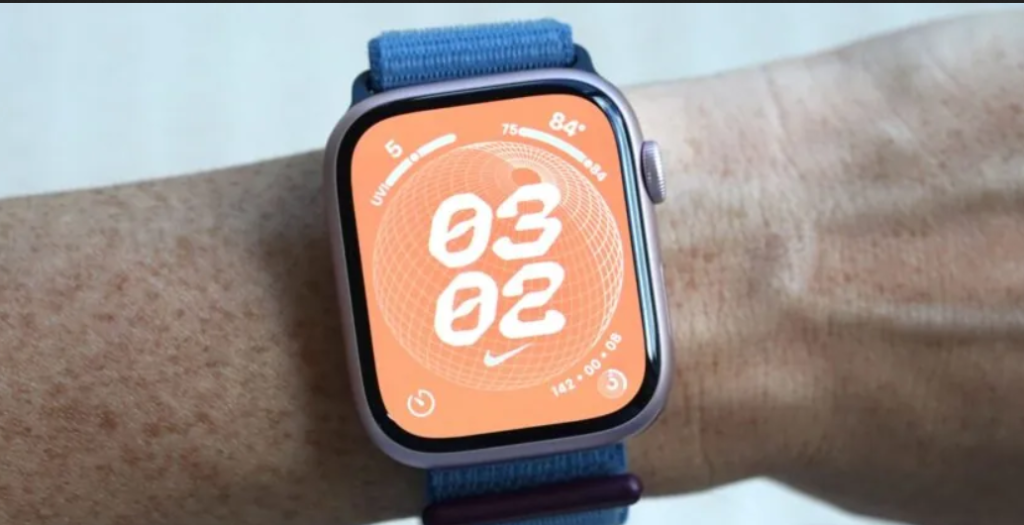
In this section, we note that watchOS 11 has new settings and visuals that differ from watchOS 10. The watch pairs with iPhones on iOS 18 or later. It supports new health metrics and better wireless connections. These improvements offer real value but can also introduce bugs. This article will point out those bugs and their fixes. Knowing the watch’s strengths and weaknesses gives you a better sense of what to check when Apple Watch Series 10 problems arise. You can then move quickly to the right solution for each case.
Preparing to Troubleshoot
Before you begin any fixes, backing up your watch data is a wise step. You can save watch settings and health records in the paired iPhone’s Watch app. Having a backup means you can restore data if something goes wrong during troubleshooting. Also ensure that your iPhone and watch run the latest software versions. You need watchOS 11.0.1 or later and iOS 18 or later for best results. Up-to-date software reduces the chance of old bugs reappearing. Taking these steps prepares you for safe troubleshooting when Apple Watch Series 10 problems occur.
It is also important to remember that not every device will face the same errors. Some users report battery drain, while others see app crashes or pairing issues. Apple Watch Series 10 problems may vary in severity and frequency. Keeping an eye on community forums may also alert you to fresh fixes. With this preparation, you are ready to tackle each problem with confidence.
Battery Drain Issues
Many owners notice sudden battery loss on their new watch. A bug in watchOS 11 can cause the battery to drop faster than expected. This battery drain issue often shows up after installing a major update. When your watch runs out of power quickly, it can disrupt daily tracking and notifications. Seeing the battery level fall from full to half in a few hours can feel frustrating. You might worry that the hardware is faulty, but often the cause is a software glitch.
To fix this battery drain bug, update your watch to watchOS 11.0.1 or later. Open the Watch app on your iPhone, go to the My Watch tab, then tap General and Software Update. Download and install the latest version. This update includes a patch for the known battery issue. After the update, monitor your watch to see if the battery life returns to normal. In most cases, this simple step resolves the rapid power loss and restores reliable performance.
App Crashes and Music App Issues
Some users find that the Apple Music app crashes on the Series 10 watch. These crashes also affect the Ultra 2, suggesting a watchOS software problem. When you open the Music app, it may freeze or close unexpectedly. This can spoil your listening experience and make it hard to control playback from your wrist. Other third‑party apps can also behave badly, closing on their own or refusing to open. These app crashes are part of the Apple Watch Series 10 problems that arise from new software versions.
A known fix for Music app crashes is to disable the Automatically Add Music setting. Open the Watch app on your iPhone, tap Music, and turn off Automatically Add Music. Then force‑close the Music app on the watch by pressing the side button and swiping up on Music. Place the watch on its charger and let it restart so the change sticks. For other apps, check for updates in the App Store under Account and Updates. If an app is not a system app, you can uninstall it in the Watch app under Installed on Apple Watch, then reinstall it. These steps often clear up crashing and restore smooth app use.
Pairing Issues and iPhone Out‑of‑Date Error
Pairing the Series 10 watch to an iPhone is usually simple, but some see an “iPhone out of date” error. This message appears when the phone runs an older iOS version. Without the right iOS version, the watch cannot pair properly. This pairing error stops you from using features that require a secure link between the two devices. It can feel like a roadblock when you first set up your watch. Other pairing errors may occur when the viewfinder method fails or when the connection times out.
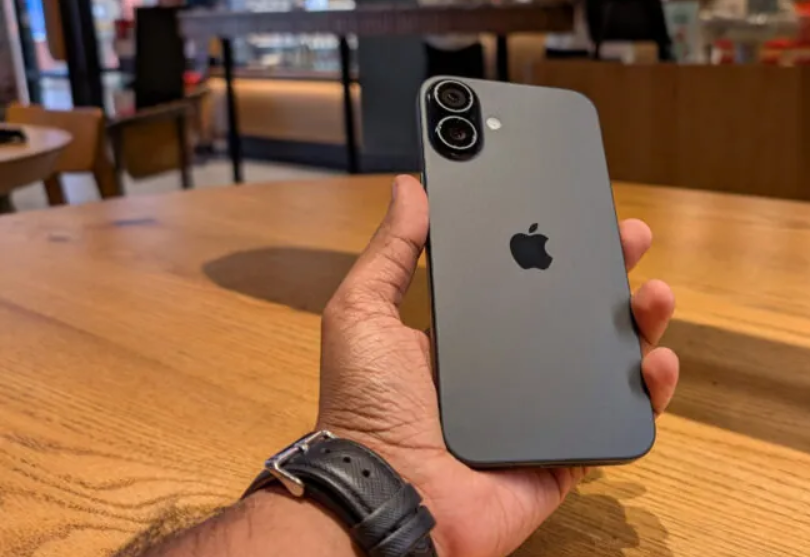
To fix the iPhone out‑of‑date error, update your phone to iOS 18. Go to Settings, tap General, then Software Update. Install the new version and try pairing again. If the viewfinder fails, select Pair Apple Watch Manually on the watch’s screen and follow the prompts. Reboot both devices by holding the side button and Digital Crown on the watch until you see the Apple logo. If update checks fail, toggle Wi‑Fi or Airplane Mode on your phone. These steps clear the most common pairing issues and let you link your watch successfully.
Heart Rate Sensor Bug
A few Series 10 owners report that heart rate readings jump wildly or stop registering altogether. The sensor may show a very high or very low value that does not match your pulse. At other times, the watch may fail to detect a heartbeat for several minutes. This error undermines the watch’s health tracking functions and can cause concern. It is one of the less common Apple Watch Series 10 problems, but it can affect the device’s main purpose for many users. A wrong reading may lead you to doubt the accuracy of other health metrics.
The main remedy for this heart rate sensor bug is a full watch reset. In the Watch app on your iPhone, go to General, then Reset, and select Erase Apple Watch Content and Settings. After the reset, set up the watch again and check the heart rate readings. If the error persists after the reset, the issue may be hardware related. In that case, returning the device under warranty for repair or replacement is the next step. This process ensures your watch’s sensor works as intended.
Power and Charging Issues
Some Apple Watch Series 10 owners find that their watch shows no charging indicator despite correct placement on the charger. Normally, a green lightning bolt icon appears on the watch face when charging begins. When that icon does not appear, you may wonder if the charger or cable is at fault. This charging failure stops the watch from gaining power and can leave you with a dead battery. It can feel frustrating when you expect the device to charge overnight but wake to a blank screen.
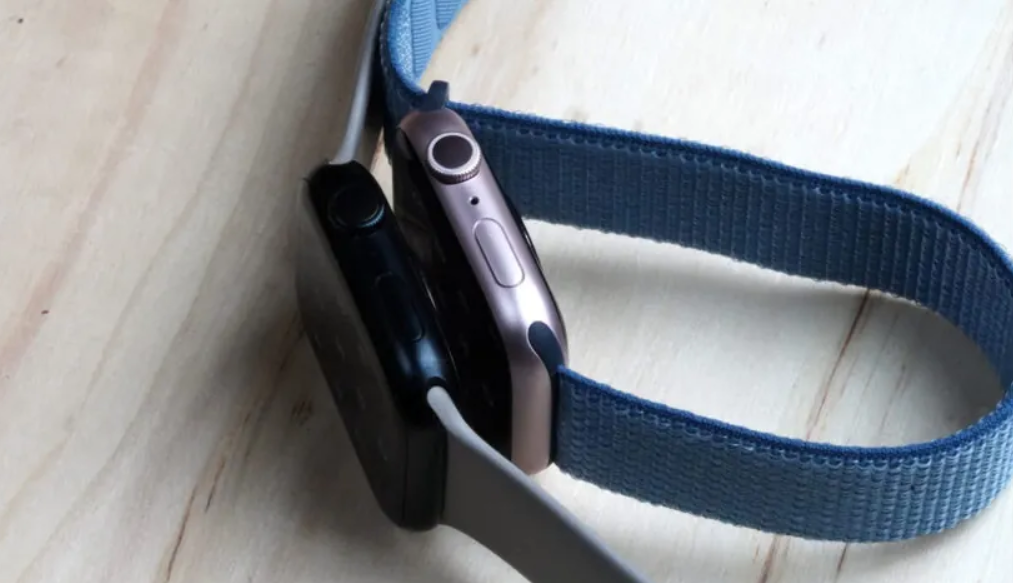
To resolve charging issues, first ensure the watch sits squarely on the magnetic charger and the cable is firmly in the adapter. Verify that the wall plug is powered on or try another outlet. Restart the watch by holding both the side button and Digital Crown until the Apple logo appears. If that does not help, clean the back of the watch and the charger pad with a soft cloth to remove debris. Finally, test with a different Apple charging cable if available. These steps often restore proper charging and bring back the green icon.
Notification Delivery Problems
Missing notifications is a common complaint among Apple Watch Series 10 users. Alerts may not appear on the wrist even though they reach the iPhone. Often the cause is Do Not Disturb mode or Airplane Mode enabled by mistake. A crescent moon icon on the watch face means Do Not Disturb is on. When this mode is active, alerts remain silent. Likewise, Airplane Mode stops all wireless connections, so notifications cannot arrive. It can be worrying to miss messages or reminders because of these settings.
To fix notification delivery, swipe up on the watch face and tap the Do Not Disturb icon to turn it off. Then check your iPhone’s Control Center and disable Airplane Mode if it is on. Restart both the watch and phone to resync connections. If certain apps still do not send alerts, open the Watch app on the iPhone and tap Notifications. Scroll to the affected app and ensure Show Alerts is selected. After these checks, your watch should receive all notifications as intended.
Bluetooth and Wi‑Fi Connectivity Issues
Sometimes the Apple Watch Series 10 loses its Bluetooth link to the iPhone or fails to join a known Wi‑Fi network. When Bluetooth drops, calls and alerts stop reaching the watch. A missing Wi‑Fi connection can block updates and limit data access. These connectivity problems disrupt the smooth experience users expect. It can be unsettling when the watch cannot stay linked to a phone or network. You may wonder if the watch has a hardware fault or if settings are at fault.
To restore connections, confirm that your watch is set to the correct Bluetooth device or Wi‑Fi network in the Settings app on the watch. Next, check if Airplane Mode is off by swiping up and tapping the airplane icon. If the issue persists, reboot the watch by holding the side button and Digital Crown together until the Apple logo appears. These simple steps clear many temporary glitches and help the watch reconnect to your phone and network as before.
Update and Software Installation Errors
Installing watchOS updates on the Series 10 can sometimes fail or stall. Even with enough free space and a solid Wi‑Fi link, the download may not start or complete. A failed update leaves the watch on an older software version that may have bugs. It can feel disappointing when you expect new features or fixes. Interrupting an update by removing power or network access can also lead to errors. This update failure is one of the Apple Watch Series 10 problems that may affect early adopters.
To fix update errors, place your watch on its charger and ensure it has at least 50 percent battery. Keep the paired iPhone nearby and connected to Wi‑Fi. If the update still fails, restart the iPhone and try again. You can also delete the downloaded update file in the Watch app under General, Software & Updates, then tap Delete. After that, reboot the watch and redownload the update. These steps clear corrupted files and allow the watch to install the new software properly.
Conclusion
Apple Watch Series 10 problems range from battery drain and app crashes to pairing errors and sensor bugs. Users may also face charging, notification, connectivity, and update issues. Each problem can feel alarming when it interrupts daily use of the device. Fortunately, most issues have clear fixes that you can apply yourself. Updating software, adjusting settings, and restarting devices often solve the glitches. When those steps fail, a full reset or warranty service may be needed.